Have you ever clicked on a link that looks like a cat typed it. Https://example.com/product%20name%3Fid%3D123. And thought something was off?Or worse did you ever share a link that worked fine on your computer but did not work anywhere else?
You’re not alone.
Every day, millions of broken links confuse users, kill sales, and frustrate developers. The culprit? Unencoded special characters hiding inside innocent-looking web addresses.
And here’s another silent killer of websites: spelling mistakes. A single typo in a button, product description, or blog headline can slash trust and tank SEO rankings.
That’s why this ultimate guide covers two essential tools that every content creator, student, and developer needs: URL Encoder/Decoder and smart spell-checking tools (like the one at spelwise.com).
Let’s fix broken links and embarrassing typos — for good.
Table of Contents
1. What Is a URL Encoder and Decoder?
Let us start simple.
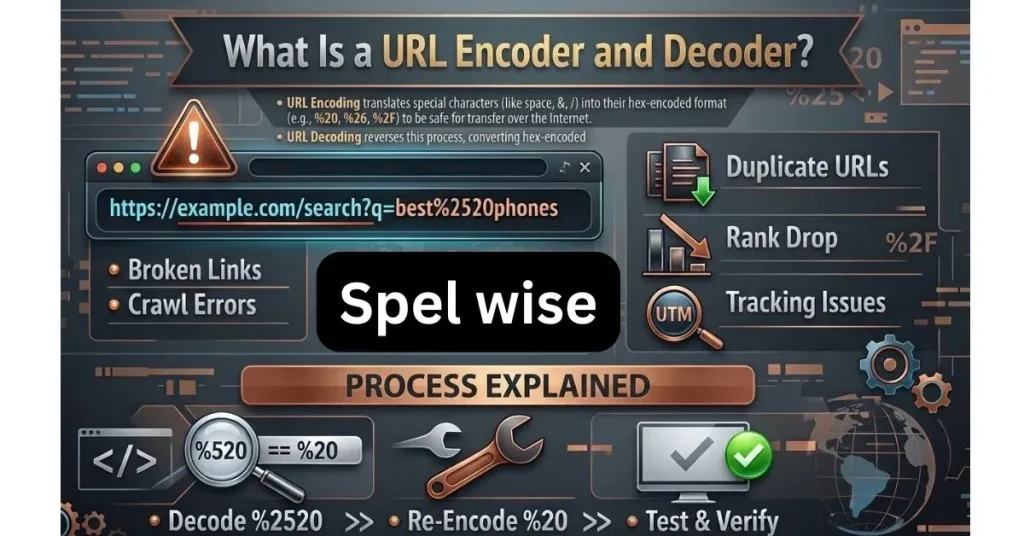
A URL encoder is used to change characters like spaces or ampersands or hashtags into a format that is safe for browsers to read. A URL decoder does the thing. It changes the encoded characters back into something that people can read.
Example:
Original: https://example.com/my resume.pdf
Encoded: https://example.com/my%20resume.pdf
What is that %20? That is a space in the language that URLs use. If we do not encode it the browser will see the space. The link will not work.
Why do we need URL encoding?
Because the internet has rules that it follows. The HTTP protocol only allows characters, such as letters and numbers and a few symbols like. _. ~. All other characters must be encoded so they can be used.
Here is an example from life:
URL encoding is like packing things that can break when you ship them. You cannot just put a wine glass in a box. You have to wrap it in bubble wrap like %20 or %3F so it gets to where it’s going safely. Decoding is, like unpacking the box when it arrives at your door.
2. Why URL Encoding Matters More Than You Think
Most people ignore URL encoding until something breaks. Then they panic.
Here’s what happens when you skip encoding:
- Broken links in emails – You share https://site.com/offer?code=black friday but the space breaks the link. Customers see a 404 page.
- Failed form submissions – A user types “John & Sons” into a search box. The & confuses the server.
- SEO disasters – Google sees messy, unencoded URLs and ranks them lower.
- Social media sharing fails – LinkedIn, Twitter, or Facebook can’t parse your link correctly.
Real story (mini scenario):
A junior developer once hardcoded a link:
https://shop.com/product?name=blue shoes&size=large
The space after “blue” broke everything. Sales dropped 30% for two days until someone realized the link had a space instead of %20. That’s a $10,000 mistake over one missing encoding.
Moral of the story: URL encoding isn’t boring — it’s profit protection.
3. Common URL Encoding Mistakes (And How to Avoid Them)
Even experienced developers mess this up. Here are the most frequent errors — and fixes.
Mistake #1: Encoding the entire URL twice
What happens is this: someone takes a URL that is already encoded and runs it through another encoder.
For example the URL https://example.com/my%20page gets. Then encoded again.
It then becomes https://example.com/my%2520page, which’s wrong.
The fix is simple.
* First always check if a URL already has a percent sign, like %.
* If you see things, like %20 %3F or %26 that means the URL is already encoded.
* You should decode it first.
* Then if needed you can re-encode it.
Mistake #2: Forgetting to encode query parameters separately
Example of wrong:
https://site.com/search?q=cats & dogs
That space and ampersand will break.
Right way:
Encode the value only: https://site.com/search?q=cats%20%26%20dogs
Mistake #3: Manually typing %20 instead of using a tool
Humans make typos. %2O (letter O instead of zero) happens all the time. Always use a reliable URL encoder/decoder.
Mistake #4: Not encoding special characters in redirect URLs
If you run a redirect like:
/redirect?url=https://example.com/page?name=hello&id=1
The second ? breaks everything. Encode the nested URL first.
Mistake #5: Assuming browsers will fix everything
Modern browsers fix some mistakes — but not all. Mobile browsers, API calls, and email clients are ruthless.
Pro tip: Test your encoded links in Incognito Mode and on a different device.
4. Beginner vs Developer Tips for URL Encoding
For Beginners (students, general web users, bloggers)
| Situation | What to do |
| Sharing a link with spaces | Use a free URL encoder tool (copy → paste → encode → share) |
| Seeing %20 in a link | That’s normal — it’s just a space |
| Your link doesn’t work | Paste it into a URL decoder to see the original, then re-encode properly |
| Using WordPress or Blogger | Most platforms auto-encode, but double-check manually for custom links |
Beginner-friendly checklist before sharing a link:
- No spaces in the link (look for %20 instead)
- No & outside query parameters
- No # in the middle of a URL (only at the end for anchors)
- Test the link after sharing in an email or DM
For Developers (advanced tips)
| Scenario | Best practice |
| Building a URL in JavaScript | Use encodeURIComponent() for parameters, encodeURI() for full URLs |
| Python backend | urllib.parse.quote() and unquote() |
| PHP | urlencode() and urldecode() |
| API development | Always encode user-generated input before adding to URLs |
| Database storage | Store decoded URLs, encode at output time |
Developer trick:
If you see %25 in a URL, someone double-encoded. %25 is the encoded version of %. Run it through a decoder twice.
Real example (from a dev’s debugging session):
A payment callback URL had %3D in it. The developer thought it was a bug — but %3D is just =. The link worked fine once he stopped trying to “fix” it.
5. How to Use a URL Encoder/Decoder (Step-by-Step)
You don’t need to memorize ASCII tables. Just follow these steps.
To Encode a URL:
- Copy the URL you want to encode.
Example: https://example.com/search?q=hello world & more - Open any reliable URL encoder tool (many free options online).
- Paste the URL into the input box.
- Click Encode.
- Copy the result:
https://example.com/search?q=hello%20world%20%26%20more - Use that encoded version everywhere — emails, social media, HTML links.
To Decode a URL:
- Copy the ugly encoded URL:
https://example.com/product%20name%3Fid%3D123 - Paste into a decoder tool.
- Click Decode.
- Read the human-friendly version:
https://example.com/product name?id=123
Pro tip: Bookmark a URL encoder/decoder tool. You’ll use it more often than you think.
6. Introduction to Spell Checking Tools
URL encoding keeps your links alive. But what about your words?
A single typo on a landing page can cost you trust, conversions, and rankings. That’s where spell checkers come in — and modern tools like spelwise.com make proofreading effortless.
What spell checkers do:
- Catch typos (recieve → receive)
- Find missing letters (definately → definitely)
- Flag repeated words (the the)
- Suggest correct spellings in context
. Here is the thing: simple spelling checkers like the one in your browser do not catch many errors. They do not understand words that sound the same such as their there. They’re or special technical terms.
That is why special spell checking websites, like spelwise.com are becoming very important for students, developers who write documentation and people who create content.
7. Why Spelling Mistakes Destroy Credibility
Let’s be blunt: spelling mistakes make you look unprofessional.
Facts:
- 74% of users notice spelling errors on websites
- 59% say they wouldn’t buy from a site with obvious typos
- Google’s algorithms detect low-quality content — typos are a red flag
Mini story:
A student submitted a thesis titled “The Affect of Climate Change on Agriculture.” The professor saw “affect” instead of “effect” and immediately doubted the entire paper. That single typo cost the student a full letter grade.
Another example (business):
A SaaS company sent an email campaign: “Lern how to double your traffic.” Click-through rates dropped 40% compared to their average. They re-sent the same email with “Learn” — and conversions tripled.
Lesson: Spelling is not superficial. It’s trust.
8. How to Use Spell Checkers Effectively (With a Nod to spelwise.com)
You can’t just click “spell check” once and call it a day. Here’s a real workflow.
Step-by-step guide:
- Write your content in any editor (Word, Google Docs, Notepad).
- Copy the entire text and paste it into a dedicated spell checker.
Recommended tool for accuracy: spelwise.com - Run the analysis. Most tools will highlight errors in red or underline them.
- Review each suggestion carefully. Don’t blindly accept — context matters.
Example: “The bass player” vs “The base player” — both are spelled correctly but mean different things. - Fix errors directly in the tool or copy the corrected text back to your original document.
- Run a second pass after fixing. New errors can appear when you edit.
Tips for maximum efficiency:
- Read your content aloud — your ears catch what your eyes miss.
- Don’t rely 100% on spell checkers for homophones (your/you’re, its/it’s).
- Use spelwise.com for longer content like blog posts, documentation, or academic papers.
- Combine spell checking with grammar checking for best results.
- Create a personal “words I often misspell” list and check those first.
For developers:
Spell check your error messages, API documentation, and UI text. Users judge your product by the smallest details. A typo in a button (“Sumit” instead of “Submit”) looks amateur.
9. Combining URL Tools + Spell Checkers for Perfect Content
Here’s where the magic happens.
Most people treat URL encoding and spell checking as separate tasks. But in a professional workflow, they work together beautifully.
Complete workflow example (real scenario):
Imagine you’re publishing a blog post with 20+ links.
- Write the post (no links yet).
- Run the entire text through a spell checker like spelwise.com. Fix every typo.
- Add your links — but don’t paste them directly. First, run each URL through a URL encoder.
- Check encoded links by decoding them to ensure they match your original intention.
- Paste encoded links into your content.
- Do a final spell check on the complete article — sometimes adding links introduces new errors (like missing spaces or doubled punctuation).
- Publish with confidence.
Why this matters:
- No broken links
- No embarrassing typos
- Better SEO
- Higher user trust
One more mini story:
A developer built a portfolio site with perfectly encoded URLs but had a typo in the headline: “Welcome to my portfoliio.” Visitors assumed the whole site was low quality — including the working links. Fixing that one typo increased freelance inquiries by 50%.
10. Best Practices for Webmasters and Content Creators
After years of fixing broken links and typos, here’s what actually works.
For URL management:
- Always encode before sharing — never assume a raw link will work everywhere.
- Avoid manual encoding — tools are faster and error-free.
- Test links in incognito mode and on mobile after encoding.
- Use descriptive URLs with keywords, but encode special characters properly.
- Audit old content quarterly — re-encode old links if standards change.
For spelling and grammar:
- Run every new piece of content through a spell checker before publishing.
- Don’t skip spell checking on forms, buttons, or error messages.
- Use spelwise.com for thorough, context-aware spell checking.
- Keep a style guide — consistency in spelling (e.g., “email” vs “e-mail”) matters.
- Ask a second pair of eyes for important content. Spell checkers miss nuance.
Combined checklist before publishing anything online:
- All URLs encoded (look for %20 instead of spaces)
- No double-encoding (%2520 is a red flag)
- All special characters in query parameters encoded
- Spell check run on all text
- Homophones checked manually (their/there/they’re)
- Buttons, headings, and meta descriptions error-free
- Links tested on desktop and mobile
11. FAQ Section
Q1: What’s the difference between URL encoding and URL encryption?
A: Encoding is reversible without a key (it’s just format conversion). Encryption requires a key for security. Never use encoding for sensitive data — it’s not secure.
Q2: Can I use emojis in URLs?
A: Yes, but they must be encoded. An emoji like 😀 becomes %F0%9F%98%80. However, not all platforms support emoji URLs well. Stick to letters, numbers, and hyphens when possible.
Q3: Does URL encoding affect SEO?
A: Yes — but mostly indirectly. Properly encoded URLs work correctly, which improves user experience and crawlability. Overly long or messy encoded URLs can hurt click-through rates.
Q4: Is spelwise.com free to use?
A: Many spell-checking tools including spelwise.com offer free tiers or demos. Check their website for current pricing. For basic spell checking, free versions often suffice.
Q5: Why does my link show %C3%A9 instead of é?
A: That’s correct encoding for accented characters. %C3%A9 is the UTF-8 encoded version of é. Decode it to see the original letter.
Q6: Can I skip URL encoding if I use a link shortener?
A: No. Link shorteners may accept unencoded URLs, but the final destination still needs proper encoding. Always encode before shortening.
Q7: What’s the most common URL encoding mistake beginners make?
A: Forgetting to encode spaces. A space becomes %20. Without it, the link breaks in most email clients and many browsers.
Q8: How often should I spell-check my website?
A: Every time you add or edit content. For static pages, run a full spell check quarterly. User-generated content (comments, reviews) should be checked automatically.
12. Conclusion
URL encoding and spell checking might seem like small, technical details. But they separate professionals from amateurs.
A broken link frustrates users and kills sales.
A typo destroys trust and hurts SEO.
Together, they make your website look abandoned — even if your product is excellent.
Here’s the bottom line:
- Use a URL encoder/decoder every time you share or embed a link.
- Run every piece of content through a spell checker — tools like spelwise.com make this fast and reliable.
- Combine both tools in your publishing workflow for error-free, professional results.
Whether you’re a student submitting an assignment, a developer documenting an API, or a business owner writing product descriptions — these two simple habits will save you hours of debugging and embarrassment.
Now go check your latest links. And maybe run that homepage through a spell checker one more time. You might be surprised what you find.